
uvi-script
Musical event scripting with Lua
Loading...
Searching...
No Matches
Building Your First Script

Welcome to uvi-script!

Welcome! This tutorial will guide you through creating your first functional uvi-script. We'll build a vibrato effect, and in the process, you'll learn the fundamental concepts of scripting in the UVI environment.

uvi-scripts are powerful modules written in the Lua programming language that can process and generate musical events in real-time. Think of them as MIDI effects on steroids.

For this tutorial, you don't need to be a Lua expert, but some programming basics will be helpful. If you want to learn more about Lua, the online book Programming in Lua (for 5.1) and the official Lua 5.1 Reference Manual are excellent resources.

Step 1: Setting Up Your Script

First, you need a ScriptProcessor module in your instrument.
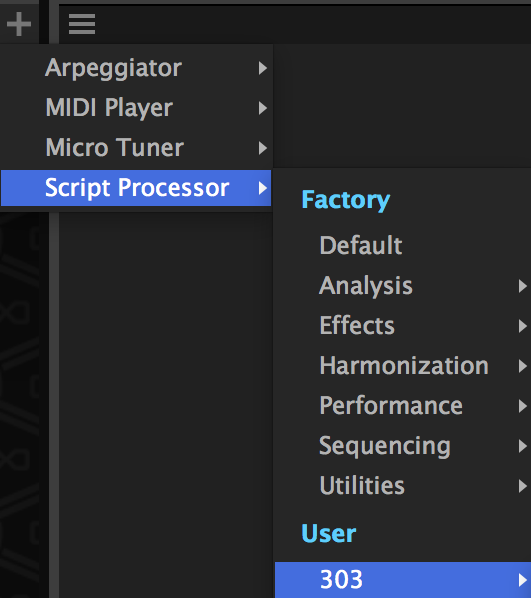
  1. In the main Edit page, click on the Event Processors tab, then click Add -> ScriptProcessor.
  2. Next, open your favorite text editor. We recommend a modern editor with Lua language support, like Visual Studio Code with a Lua extension.
  3. Create a new, empty text file and save it as vibrato.lua.
  4. Back in the ScriptProcessor, click the Load button and select the vibrato.lua file you just created.

You now have a valid, empty script loaded. As you make changes, remember to click Reload to apply them.

Step 2: Handling Notes with onNote

uvi-script is event-driven. This means it waits for something to happen (like a note being played) and then reacts to it. We define our reactions inside special functions called callbacks.

The most important callback is onNote(e), which runs every time you play a note. The e argument is an Event object that contains details about the note, like its pitch and velocity.

Let's start with the simplest possible script. Add this to your vibrato.lua file:

function onNote(e)
-- This function is called for every new note.
-- 'e' contains the note event data.
-- Forward the event to the output. If we don't do this, we won't hear anything!
end
void onNote(table e)
event callback that will receive all incoming note-on events if defined.
function postEvent(e, delta)
send a script event back to the script engine event queue.
Definition api.lua:842

Click Reload. Now, when you play a note, the script receives it, postEvent(e) forwards it, and you hear the sound.

Step 3: Creating a Loop for the Effect

A vibrato is a continuous modulation, so we need a loop that runs as long as the note is held. We can do this with a while loop and the isNoteHeld() function.

We also need to get a unique ID for our note so we can modify it later. postEvent(e) conveniently returns this ID.

function onNote(e)
-- Post the event and store the unique voice ID it returns.
local id = postEvent(e)
-- Loop as long as the note is held down.
while isNoteHeld() do
-- We will add our vibrato logic here.
-- For now, the loop is empty.
end
end
function isNoteHeld()
return true is the note that created this callback is still held.
Definition api.lua:810

If you run this, you'll notice the script freezes! This is because the loop runs infinitely fast without giving the audio engine any time to breathe. We need to tell the script to pause on each iteration.

Step 4: Waiting and Time

To fix the frozen script, we add a wait() command inside the loop. This function pauses the script for a few milliseconds, yielding control back to the engine. This is a critical concept in uvi-script.

function onNote(e)
local id = postEvent(e)
local grain = 5 -- The update period in milliseconds.
while isNoteHeld() do
-- Pause for 5 milliseconds before the next loop iteration.
wait(grain)
end
end
function wait(ms)
suspend the current thread callback execution for the given number of samples.
Definition wrapper.lua:39

Now the script runs correctly without freezing, but it still doesn't do anything. Let's create the vibrato.

Step 5: Building the Vibrato Effect

To create a vibrato, we need an oscillator. We can simulate one using math.sin(). We'll also use getTime() to get a constantly running clock, which ensures our vibrato speed is stable.

The final piece is changeTune(), the function that actually changes the pitch of a specific voice.

Here is the complete logic inside the onNote function:

function onNote(e)
-- Script parameters
local vibratoFreq = 4 -- Vibrato frequency in Hz
local vibratoDepth = 0.1 -- Vibrato depth in semitones
local grain = 5 -- Update rate in milliseconds
-- Post the note event and get its unique voice ID
local id = postEvent(e)
-- The onNote callback runs in its own thread for each note,
-- so we can create a loop here without blocking other notes.
while isNoteHeld() do
-- Calculate a sine wave value based on the current time.
-- This is our Low-Frequency Oscillator (LFO).
local lfo = math.sin(2 * math.pi * vibratoFreq * getTime() / 1000)
-- Calculate the final pitch modulation
local modulation = vibratoDepth * lfo
-- Apply the pitch change to our specific note
changeTune(id, modulation)
-- Wait for a few milliseconds before the next update
wait(grain)
end
end
The Synthesis primitive.
Definition Engine.cpp:301
function getTime()
get the number of milliseconds elapsed since the script engine start.
Definition api.lua:740
function changeTune(voiceId, shift, relative, immediate)
change the tuning of specific voice in (fractionnal) semitones.
Definition api.lua:477
Note
Each onNote callback runs in its own lightweight thread, managed by the engine. This means you can create a while loop that uses wait() inside onNote without blocking other notes from playing. The engine automatically handles the parallelism required for polyphony.

Step 6: Adding UI Controls

Our script works, but the vibratoFreq and vibratoDepth are hard-coded. Let's add UI controls to change them on the fly.

We do this by replacing the variables with Knob widgets.

-- Create two knobs on the UI to control the effect.
local freqKnob = Knob("Frequency", 4.0, 0.1, 10.0)
local depthKnob = Knob("Depth", 0.1, 0.0, 1.0)
-- Set the unit display for the depth knob.
depthKnob.unit = Unit.SemiTones
function onNote(e)
local grain = 5
local id = postEvent(e)
-- Loop to apply the vibrato effect.
-- This runs in a separate thread for each note, so it won't block others.
while isNoteHeld() do
-- Read the current value from the knobs
local vibratoFreq = freqKnob.value
local vibratoDepth = depthKnob.value
local lfo = math.sin(2 * math.pi * vibratoFreq * getTime() / 1000)
local modulation = vibratoDepth * lfo
changeTune(id, modulation)
wait(grain)
end
end
Knob widget.
Definition ui.cpp:1424
Predefined unit types.
Definition ui.cpp:592

The key changes are:

  1. local vibratoFreq = 4 became local freqKnob = Knob(...).
  2. Inside the loop, we now read freqKnob.value and depthKnob.value on each iteration to get the latest setting from the UI.

Mappers and Units

Knobs (and Sliders) accept a Mapper and a Unit that control how the widget behaves and displays its value.

A Mapper defines the curve between the widget's visual position and the actual parameter value. For example, a filter cutoff frequency spanning 20 Hz to 20 kHz sounds best with an exponential curve so that each visual increment represents the same perceived change:

local cutoff = Knob("Cutoff", 20000, 20, 20000)
cutoff.mapper = Mapper.Exponential -- natural feel for frequency ranges
Predefined mapper types.
Definition ui.cpp:534

Available mappers include Linear (default), Exponential, Quadratic, Cubic, SquareRoot, and more — see Mapper for the full list with formulas.

A Unit tells the engine how to format the displayed value. Instead of writing custom formatting code, just pick the appropriate unit:

depthKnob.unit = Unit.SemiTones -- displays "st" suffix
freqKnob.unit = Unit.Hertz -- displays "Hz", switches to "kHz" above 1000
gainKnob.unit = Unit.LinearGain -- converts linear 0..1 to dB display
mixKnob.unit = Unit.PercentNormalized -- displays 0..1 as 0%..100%
@ Hertz
display Hz symbol.
Definition ui.cpp:619
@ PercentNormalized
display % symbol but actual value is in the 0..1 range
Definition ui.cpp:607
@ SemiTones
display semitones symbol
Definition ui.cpp:643
@ LinearGain
display dB symbol but with normalized gain
Definition ui.cpp:627

See Unit for all available types (Seconds, MilliSeconds, Decibels, Cents, MidiKey, etc.).

Both can be set as properties or passed directly in the table constructor form:

local cutoff = Knob{"Cutoff", 20000, 20, 20000, mapper = Mapper.Exponential, unit = Unit.Hertz}
@ Exponential
Exponential mapper, the parameter's range should be strictly positive.
Definition ui.cpp:546

When no built-in unit fits your needs, you can override the display with the displayText property — see the monoBassLine example for a complete demonstration of mappers, units, and displayText in action.

Conclusion

Congratulations! You've built a complete, interactive vibrato effect.

In this tutorial, you have learned several core concepts:

  • How to set up a script and respond to notes with the onNote callback.
  • How to use while isNoteHeld() and wait() to create continuous effects.
  • How the engine handles polyphony by running each onNote in a separate thread.
  • How to get a unique voice ID from postEvent() and use it with changeTune().
  • How to create UI controls like Knob and read their .value.

From here, you can experiment by changing the parameters, browse the Examples Gallery for complete scripts, or explore more advanced topics in the UI Guide and the full API Reference.